Evernote Hello Review
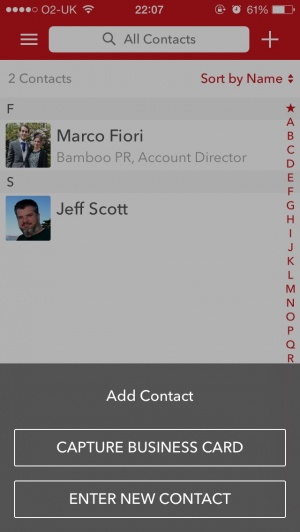
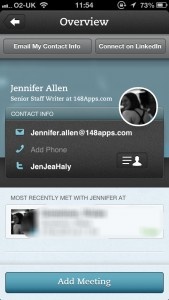
iPhone App - Designed for the iPhone, compatible with the iPadEvernote Hello takes all the hassle out of keeping track of business contacts and meetings.
Read The Full Review »
Posts Tagged contactsEvernote Hello ReviewiPhone App - Designed for the iPhone, compatible with the iPadEvernote Hello takes all the hassle out of keeping track of business contacts and meetings. Read The Full Review » Our phones have become a significant part of our lives, holding large quantities of our personal data on them. Apps that use our data are also a significant part of them, especially given the rise of free apps and services – if you’re not paying, you’re the product – and what these apps have access to is often quite extensive. While Apple’s walled garden does keep many of those with malicious intent away from the App Store, they’re not perfect. There may just be an app that you trust that is doing something with the data you gave it permission for. Here’s how to manage these privacy settings. The first and most obvious destination is the Privacy section in Settings. Here, you will see sections for various types of data that apps have requested.
By going to one of these sections, and switching the toggle for that app off, then it will not have access to that data any more. So an app that requests Photos access can have it be restricted. Or, if you initially denied access and wish to grant it, you can now do so from this section.
The Location Services section is particularly worth delving into because not only can the icon appear at random times for no apparent reason, but the section to manage it has many wrinkles that the others do not. One, there are variably-colored location icons next to each service, and they may not be apparent to what they mean until you scroll to the bottom, where iOS explains what each icon means.
What this means is that you can see on this section which apps are currently requesting your location, not just which apps have access to your location. If an app is continually causing the location services icon to appear in the status bar (and potentially draining your battery), you can see which apps are the culprit here. Often times, apps that use location services can have settings disabled from within the app to have their recurring location check disappear, as having loaction access enabled periodically may be key to your usage of the app. As well, the System Services section shows several system functions that use your location, including one for Location-Based iAds that can modify the types of ads you see.
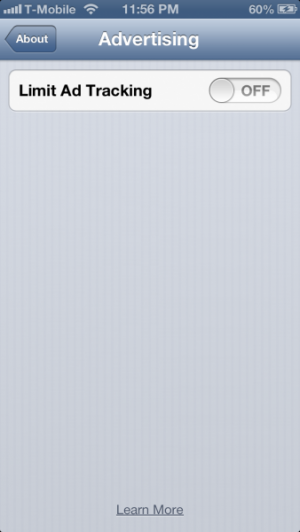
Hopefully these tips have helped you manage your privacy better, and you have a greater understanding of the types of access that iOS apps and system functions have to your data. Now, there’s one particular advertising-related privacy setting that’s not in Privacy that’s worth considering. Go to Settings→General→About and scroll all the way down to Advertising. Tap on this, and you’ll see a setting for Limit Ad Tracking. By enabling this, then services that identify your device by the Apple Advertising Identifier cannot track you based on this. This means that advertisements will be less targeted to you.
The beauty of individualized ringtones is simple: it’s nice to know who’s calling solely by sound when not looking directly at your phone. But who calls anyone any more that isn’t one’s parents? It’s all texting nowadays. And how about vibration? Well, there is a way to do this, and though it was once only available as an accessibility feature, it’s possible for all users to do this as a system-level feature. While it’s somewhat buried, it is easy to setup. Go to Contacts. Find the contact you want to set up the custom sound/vibration for, and open up their listing. Now, tap Edit in the top right. This doesn’t just open up the various fields for editing, but it also unlocks the custom sound and vibration settings.
Choosing a ringtone will make that sound play whenever the contact calls. The vibration setting directly below that will be the vibration that goes off when they call. For text tone, this will be the sound that plays when they text, and the vibration setting below this will be the one that goes off when they text. For vibration, it will be set to the pattern you have set by default, and the other built-in ones can be selected here. To create a custom pattern, scroll down to the Vibration section and choose Create New Vibration.
This will open up a screen where the new vibration pattern can be made. Tap on the screen in various lengths and frequencies in order to create the pattern you want. When finished, tap Stop in the lower right corner to stop recording. Tap Play to play back the pattern, Record to re-record it, and Save in the upper right corner to name and save the pattern.
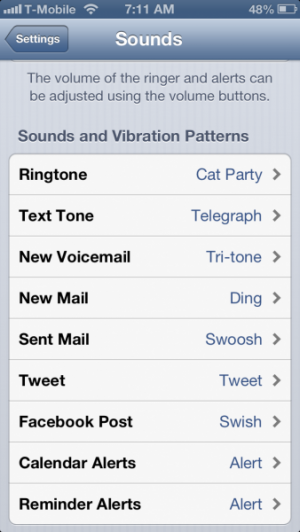
Saving a vibration pattern makes it available for other contacts, in case you just want a more defined vibration pattern, or want to create vibration patterns for certain groups of people, for example. You can also set a custom vibration pattern as the system default by going to Settings -> Sounds, and then each sound category’s vibration setting can be found by scrolling up.
With Google disabling Exchange ActiveSync support for contacts, a recent guide discussed how to sync contacts up with CardDAV. Well, what if instead you just want to sync up with iCloud instead? Is there any way to do this? Yes! Contacts can be exported to what is known as a VCF file. This includes all basic details like phone numbers, email addresses, and even info like birthdays, so that it’s a relatively pain-free experience to import and export entire lists of contacts. The only major exceptions of data that doesn’t get transferred are contact photos and individual ringtone/vibration settings. This all happens via your web browser. To export contacts, go to the Google Contacts page. Click the More button, and click Export. Most likely, you’ll want to select the My Contacts group to export, though if you have a specific group you’d like to export, select that, or all contacts. Under “Which export format?” choose vCard format. Save this file and keep note of its location.
Now go to iCloud.com. Log in, and go to Contacts. Click the gear icon in the lower left, and choose Import vCard. Open up the file you just saved from Google, and your contacts will be added to iCloud.
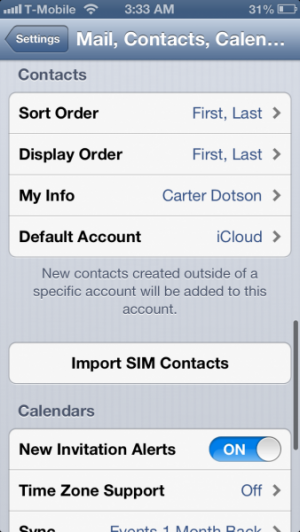
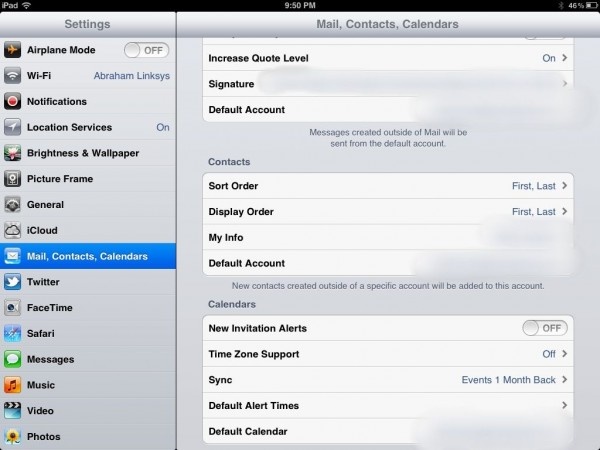
Note that while this specifically covers iCloud and Google Contacts, any service that can import or export VCF files should work. iCloud offers vCard exporting and Google offers vCard importing from the same menus if you want to go in reverse, say if you want to use your contacts on an Android device as well, or if you just want to use something less proprietary. Now, on your iOS device, make sure that the device you are using has iCloud contacts enabled. Go to Settings → Mail, Contacts, and Calendars, and choose your iCloud account, and switch Contacts to on if necessary, though it is enabled by default. If you haven’t set that iCloud account up on the device, tap Add Account and then tap iCloud to set it up. On the main screen of Mail, Contacts, and Calendars, scroll down to the Contacts heading and tap Default Account. Set your iCloud account as default for new contacts to be added to this account by default.
Now go to the Contacts app. Tap Groups in the upper left corner, and you can customize which contact groups will be shown. Select only All iCloud (or whatever your iCloud account is named as) and un-select any other accounts, and your contacts list will only show your iCloud contacts. You can review them here as well, and when un-hidden, you can link cards to Google contacts or other contact groups as necessary. Congratulations, you’ve now moved your contacts to iCloud. This process can be reversed – iCloud allows for contact exporting, and Google contact importing from VCF files, and the options are in the same menu locations at each service.
Google has made an announcement that they are shutting down Exchange ActiveSync as a way to access Google email, contacts, and calendars. This has an impact on those who used our earlier guide to get sync Google contacts with iOS, used it for calendar support, or for push email to their devices. While current Exchange connections will still work after the shut down, new ones will be unable to be made. Thankfully, for those who rely on this for contacts, calendars, and email, there are alternatives available. For calendars, the best replacement solution is to just use the standard Gmail account setup – this uses a protocol called CalDAV to automatically sync calendar events between the device and Google. It should automatically pull in new updates to calendars shortly after they are made elsewhere.
For email, there is no reliable solution at the moment for getting push email in the default Mail app. The Gmail app, which has been recently updated, works very well and has support for multiple accounts and push notifications. Otherwise, consider using an app like Boxcar or Push 4.0 to get push notifications of incoming email. For contacts, an open protocol named CardDAV can be used to sync Google Contacts up with an iOS device instead. Setting it up is easy. Go to Settings→Mail, Contacts, and Calendars, and choose Add Account…. At the list of services, select Other.
Now choose Add CardDAV Account under the middle Contacts section.
Now at this screen, for the server, enter google.com, for User Name and Password enter your Google Account email address (this works for both regular Google accounts and Google Apps accounts) and for Description, put whatever you want the account to be named as. If all details have been properly entered, then contacts will now sync up with Google.
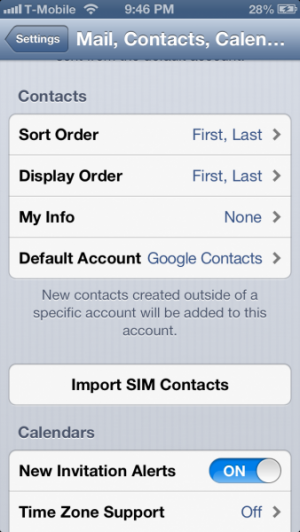
To use this account as your default account, go back to the main Mail, Contacts, and Calendars screen. Scroll down to the Contacts header. Tap Default Account.
Tap the name of the account you just set up, and any new contacts will be added to this account going forward. Congratulations, your account is now future-proofed against Google’s ActiveSync shutdown.
Cobook ReviewiPhone App - Designed for the iPhone, compatible with the iPadCobook makes it simple to combine numerous social networking tools with the user's contacts list. It's a great solution. Read The Full Review »
Posted by Jeff Scott on December 4th, 2012 |