Cons
- A bit ostentatious looking
- In-line mic needs volume/skip ability
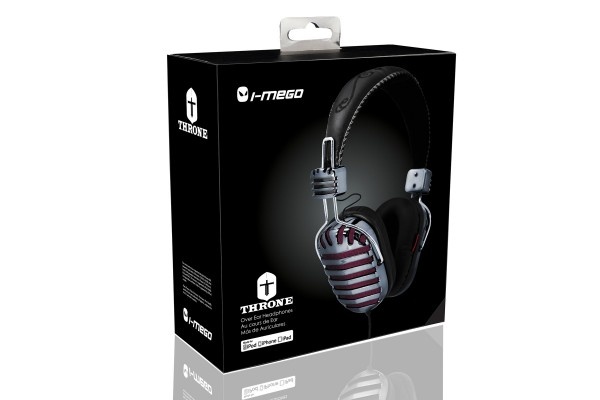
Headphones are a funny thing. One listener’s sweet spot is another’s bass-heavy muddiness. The I-MEGO Throne headphones come in two flavors: Gold (bass heavy) and Poison (balanced clarity). I am reviewing the second model, which is a pretty purple linen underneath a silver-toned grille on each over-ear cup.
I prefer headphones that I can plug into my iPhone, use as a microphone, listen to music, and–of course–game with. To this end, the I-MEGO Throne Poison headset is ideal. These are by far the most comfortable headphones I’ve worn to date, with a soft, leather over-the-head band that never hurts, even after a couple of hours of use. Ditto the soft leather, sound-isolating ear cups, which only become uncomfortable after a long gaming session due to my upper ear piercings.
The clarity of the sound on these babies is something to experience. I dislike overly-bassy headphone like Beats as they tend to overpower the rest of the sound in the mid and high frequencies. Too high-frequency, however, leads to a tinny sound, and overly mid-range response makes things sound muddy. The I-MEGO Throne Poison headphones have an excellent, across-the-board clear sound, which makes all sorts of music delightful to listen to, including, acoustic, jazz, pop, and rock.
I was surprised by the excellent sound isolation properties of the headphones, as well. I took them on a plane recently, and figured I’d have to crank up the sound as I do with most other over-the-ear styles I’ve used. Not so, at all. I even left them on during the flight without music or games on, just to decrease the ambient noise of the jet engines. The music I listened to, Steve Martin’s banjo-tastic album, Rare Bird Alert, came through loud and clear, without having to crank up the iPhone volume beyond my usual loudness preference. These are fantastic headphones.
The only quibble I have is that the in-line mic only has one button, which lets me start and stop music playback, and answer and hand up the phone. There’s no way to use it to control volume or skip songs, like the Apple Earpods do. It’s a small thing, to be sure, but it would make an already great set of headphones even better. I also wish they came in a less “look at me” style, like a less ostentation solid black, or even white.
Bottom line, the I-MEGO Throne Poison headset is now my favorite set of phones to wear, in all sorts of settings where sound isolation and amazing clarity of sound is required. They’re well worth the price tag, and compete with much more expensive units that have a far less delightful audio response.
Pros
+ Dual Stereo Speakers
+ Loud!
+ Long battery life
+ Great audio cues for connecting
Cons
- A bit muddy on the low end
- Needs a single carrying bag
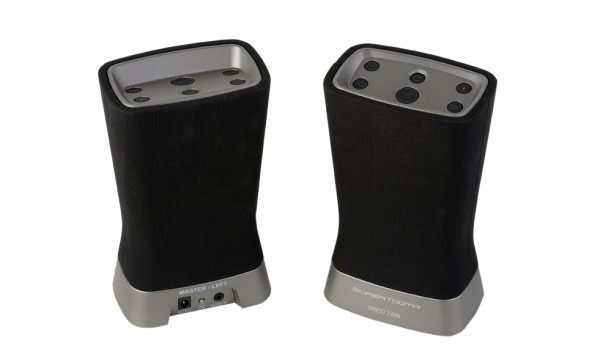
The Supertooth Disco Twin is a pair of great-sounding, rechargeable, stylish bluetooth speakers that connect to an iPhone or iPad with ease, allowing for full stereo sound. Each speaker alone is a fine mid-sized wireless speaker with a long battery life, but put two of them together and you have a portable sound powerhouse.
The Disco Twin speaker set is basically a pair of Disco II speakers, each weighing in at 16 watts of sound. Together, the pump out a stunning 32 watts of room-filling sound. It’s rare that you’ll find me turning a portable speaker down because it’s too loud, but these babies had me dialing it back on occasion.
The sound spectrum here is fairly good, with a solid if muffled bass response and decent mids and high range response. Audiophiles shouldn’t use portable Bluetooth speakers in the first place, but these do a fairly good job of sounding like more than a simple portable speaker, especially when separated and in full stereo.
Connecting these bad boys is a simple process, and there are great audio cues from each speaker to denote the on, off, and full stereo states. The left speaker is the master when connecting both, and when powered on, it says, “Left,” and then the right speaker says, “Right,” in a pleasant female voice. The speakers also say, “hello,” and “goodbye” when powering them on or off. It’s a nice touch.
The speakers come with a cloth bag for each separate unit, as well as a AC wall wart to charge the internal batteries. The battery life is relatively long when fully charged; I was able to listen to a full afternoon of music without draining them at a medium volume. The manufacturer promises 3 to 4 hours at high volume, and up to 10 on medium, and I’ve seen nothing to discount that.
The Disco Twin Bluetooth speakers are a delight to use separately or in concert as a full stereo portable speaker system, and they provide a decent sound quality and great volume for the price. I highly recommend them for those music lovers who want a bit more from a portable speaker.
Usability Rating:
Hardware Design Rating:
Integration with iPhone Rating:
Overall Rating:
Pros
+ Super light and slim
+ Extra battery life on the go
+ Keeps all iPhone 5 ports accessible
Cons
- Not quite a full extra charge
- Occasional disconnects
The iKit NuCharge is entering its final week of promotion on the Kickstarter website, and it’s already garnered twice the amount of its original funding goal. There’s a good reason for this, of course. The NuCharge is a well designed, light, slim battery case that can offer almost a full extra charge of the iPhone 5 battery case for a reasonable price.
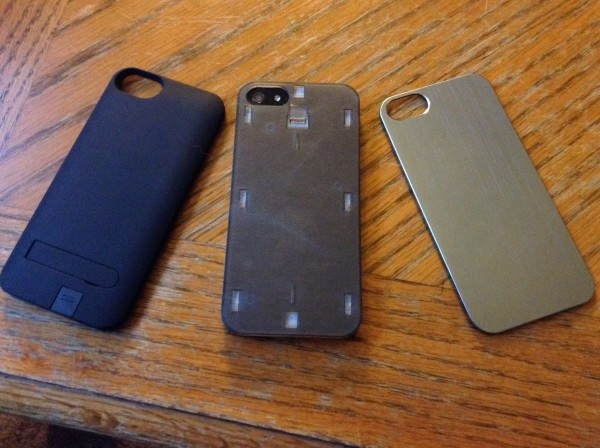
Our review unit came with the battery module, a brushed aluminum face piece, and a slim clear plastic case that fits snugly on the iPHone 5, and to which the other pieces snap onto te back of. The Li-Ion Polymer battery pack is surprisingly light and thin, adding a small amount of thickness to the iPhone when snapped into place. The brushed aluminum face plate is attractive enough to use when the battery module is either charging or when I didn’t want the little bit of extra bulk. The battery pack is easily removed, though the aluminum face plate takes a bit of effort to slide off when attached.
The NuCharge has a fairly flimsy kickstand on the back, which works to hold the iPhone 5 in a landscape orientation. It’s functional, but doesn’t feel as solidly constructed as the rest of the unit. The battery module is charged at the bottom of the unit via an included micro USB cord.
Other battery cases I’ve used offer a pass-through charging system, which the NuCharge does not. It will not charge the iPhone while the battery pack itself is connected. This isn’t a deal-breaker, as the iPhone 5 lightning connector is accessible at the same time, allowing for a dual charge scenario.
Once the battery case is fully charged, it’s a simple matter of removing the recessed Lightning cable from the back of the battery unit and connecting it to the iPhone’s own Lightning port. The rubberized connector cable feels solid and rugged, ensuring regular use for a while to come. The NuCharge was able to bring my iPhone up from 10% or so up to 94% several times over many days, which is a respectable amount considering the low weight and profile of the entire unit.
The one issue that cropped up during a few of my charging tests was an odd disconnect of the charging system. I’d have the Lightning cable connected to the bottom of the unit. The cables felt solidly plugged in, but the unit didn’t charge the iPhone until I either re-plugged the cable in or fiddled with the charging button. It didn’t happen every time, but enough to be a concern. This was a pre-release unit, however, so here’s hoping the retail version won’t have this issue.
Ultimately, the combination of solid features make the NuCharge a fantastic bit of kit, giving iPhone 5 owners that extra full battery of charge for a competitive price. While it’d be great to have just a bit more charge in the module, the weight and slim profile more than make up for it.
Pros
+ Innovative design
+ Louder than similar speakers
+ Charges Devices via USB
Cons
- Sounds a bit tinny
- Too easy to drain the battery
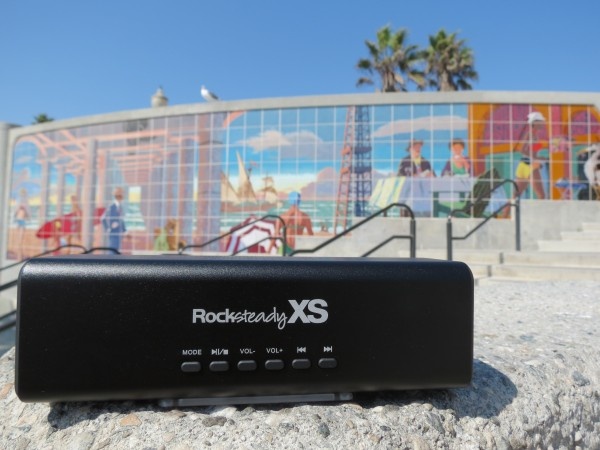
The RockSteady XS is a portable, micro Bluetooth speaker designed for use with any audio source that supports the Bluetooth 3.0 protocol, including iPads, iPhones, and other mobile or computing devices. It also includes a audio port for a line in, and a full-sized USB port for audio in and device charging, as well. There are a host of buttons on the front of the unit, which can be used to play, pause, forward, or reverse playback with many audio apps, like Pandora, Music, or Rdio.
The design of this mini speaker is interesting, in that the main speakers face out the two sides of the unit, one on each end of the rectangular casing. There are also holes in the top of the speaker, as well. Overall, this gives the RockSteady XS a distinct advantage over other speakers I’ve tried, with a 100db loudness that belies the diminutive size of the device. There’s a good deal of volume that can be applied before things get distorted, as well. The sound itself is fairly well-balanced, with a tendency for a brittle, tinny sound without some EQ from the sound source, especially at higher volumes.
The speaker itself is made of aluminum, making it both tough and light. There’s a removable battery on the bottom, and you can purchase more from Killer Concepts, making this a great option for someone who needs longer than one battery’s worth of life. In my use of the RockSteady XS, I found the battery life to be similar to that of the other devices I’ve used with an afternoon’s worth of listening at loud volume, on average.
My one big issue with the RockSteady XS is the battery on/off toggle. When I forgot to turn the unit off, which happened more than I’d like to admit, the battery continued to drain while the speaker sat on my desk, or in my bag. There really ought to be an auto-off feature to prevent typical user error like this, though it is nice to be able to definitively know if you’ve turned the speaker off, as well.
Bottom line, the RockSteady XS is a loud micro Bluetooth speaker with an innovative, rugged design that should meet the needs of many a listening environment, from outdoor picnics to dorm parties or hotel rooms. The great utility of the device is a bit offset by the sometimes tinny sound quality and the easily-forgotten toggle switch, but is still a great value considering the removable battery, the 100db sound volume, and the ability to charge a device from the back of the unit.
Usability Rating:
Integration with iPad/iPhone Rating:
Hardware Design Rating:
Re-Use Value Rating:
Overall Rating:
Pros
+ Attractive, well-designed camera
+ Excellent picture quality
+ Easy to setup
Cons
- Yearly service plan to use all features
- WiFi range could be much better
- Slow support
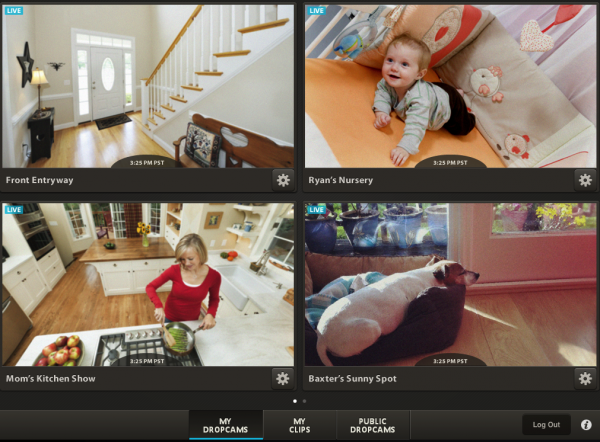
Dropcam is a small wifi enabled camera that can be used as a home security camera, baby monitor, or just to watch a dog sleep while away from home. As long as it’s in range of a wifi router, the image can be viewed from anywhere.
I was introduced to the Dropcam at CES this year. It’s an attractive package, both the hardware and the app. With the service plan it also includes some really interesting features not generally found on app-enabled web cams.
The hardware part of the Dropcam consists of a small camera shaped a bit like a 1/2 size hockey puck. The camera has a mini USB connection to allow the device to get power and to connect it to a computer for setup. The base that the camera fits into is very sturdy and fairly easy to mount. Though neither the camera fitting into the base nor the base fitting into the wall mount instill much confidence in their security.
Setting up the camera is easy and inventive. When plugged into a USB port, the camera looks as though it is a USB drive and has the software application needed to configure it right on board. Setup was quick and almost painless. I’ve found the first major restriction of the Dropcam is that it have a relatively short wifi range. The setup software requires that the wifi connection be extra strong to complete the programming. Once programmed, the wifi connection range seems to be a bit more forgiving. But it still seems to fail to connect where other devices wifi devices I have connect without issue. Contacting Dropcam support was of little help with a two week wait for reply.
Once the hardware is ready, the Universal iOS Dropcam app is needed to view the camera. Once signed into a Dropcam account, connected cameras will pop right up. The camera can be viewed them from there or further configured as needed. It must be noted that the picture quality of the Dropcam is the best I have seen in the half a dozen or so wifi cameras I’ve tested. It’s advertised at 720p and it not only looks sharp, but the color and contrast are very good as well. The camera also allows viewers to listen in to what is happening near the camera and even talk back via the app.
The iPad app is far and away easier to use over the iPhone version. The iPhone version of the software could use an update to bring it closer in features and ease of use to the iPad app.
The basic Dropcam service, which is free, allows connection to Dropcams over the Internet — wifi or cellular connection — from anywhere. Dropcam can also send push or email notifications of the configurable motion alerts.
A Plus plan ($9.95/month) gives one of the best features of the Dropcam, cloud-based DVR of video from the camera for up 7 days. This gives the ability to rewind what the Dropcam saw, view motion events, or view a specific time in the past 7 days. A Pro plan ($29.95/month) extends the DVR feature to 30 days recording. Both paid plans offer a discount for multiple cameras on one account, but extra charges do apply.
The app on both the iPhone and iPad does need a few obvious features. For instance, there’s no pinch to zoom on the camera image. Instead, the zoom region must be chosen from one of 5 zones to zoom in on in the Settings app, and it’s static from that point. Also, the camera must be connected to view the cloud based stored video with the DVR feature: an odd omission there.
Small issues aside, the Dropcam is the best app-enabled network camera I have yet tested. The software issues in particular I expect to be resolved over time. The monthly fee is a bit steep, but considering what it’s actually doing, understandable.
Overall, the picture quality and the great app make the Dropcam a great network camera, even without the fairly expensive DVR service.
The iPad’s form has been seducing digital artists and those who love to doodle since its launch. It’s also the ideal size for taking hand-written notes. There are dozens of apps that create rich drawing or writing environments, but until recently input devices have been limited. Fingers just won’t do when precision is needed so artists and copious note takers usually rely on capacitive styluses which simulate the feeling of a pen, but are limited by the touchscreen interface. They aren’t sensitive to pressure, they offer no control over line thickness, and holding one comfortably tends to leave palm marks on the virtual page. Ten One Design offers one solution with their Bluetooth 4.0 Pogo Connect stylus. It doesn’t get everything right, but it’s a solid start in a promising direction.
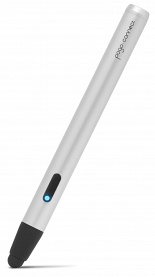
At 5.1″ (130mm) with a price tag of $80, the Pogo Connect sports a stylish silver barrel with a rubber tip at one end and decorative cap at the other. There is a single button on the side and a LED light. It uses one AAA battery and because it’s Bluetooth 4.0 that battery will last a long time. A little wider than a regular stylus, the pen lacks heft, but it fits comfortably in the hand and has good balance. The tip is the same thick dark rubber that one finds on traditional styluses and is magnetic for easy replacement. Ten One promises new tip designs in the future.
Pogo Connect doesn’t pair with the iPad in the usual way a Bluetooth device would. To assist in getting everything set up correctly, users can download the free Pogo Connect app to link the stylus and then each of the 19 compatible apps – up from the original 13 – goes its own way. Some apps like Procreate just find the pen, while others like Noteshelf require users to poke around in the settings. It’s easy.
Because the stylus uses Bluetooth 4.0 it is only compatible with 3rd and 4th gen iPads and the iPad mini. Ten One offers iPad 2 owners a less-than-elegant work-around: there is a Pogo Bridge app that connects to the iPhone 4S or 5 and then sends the signal to the iPad 2, but at present only one app – Procreate – has incorporated the feature.
One of the more glaring flaws when I first tested the Connect back in December was that it didn’t prevent palm marks, but recent updates have improved that functionality. How well it works seems to depend more upon the app than the stylus.
And what about pressure sensitivity? That’s the key selling point, but it’s very hit or miss. Some apps respond to pressure by varying line thickness, others opacity, and none respond to a light touch despite claims that the proprietary Crescendo Sensor technology requires “0 grams of activation force.” That said, the Connect outperforms captive models. It’s not transformative, but with the right app and practice, sketching feels more holistic.
There are a couple of neat features worth mentioning: the Pogo Connect app has a pen locator, the button on the stylus works as an undo command, and the LED light indicates the active ink color. Still, while somewhat more intuitive than capitative models, the Pogo Connect needs a lot of tweaking before it warrants the hefty price tag, much less turns the iPad into a device that can compete with a dedicated graphics tablet.
Bluetooth is a fantastic technology. It lets me connect my iPhone or iPad to a ton of different devices, including speakers, keyboards, other computers, headphones, and mice without wires. The latest version, 4.0, draws very little power and features an increased signal range of up to 100 feet.
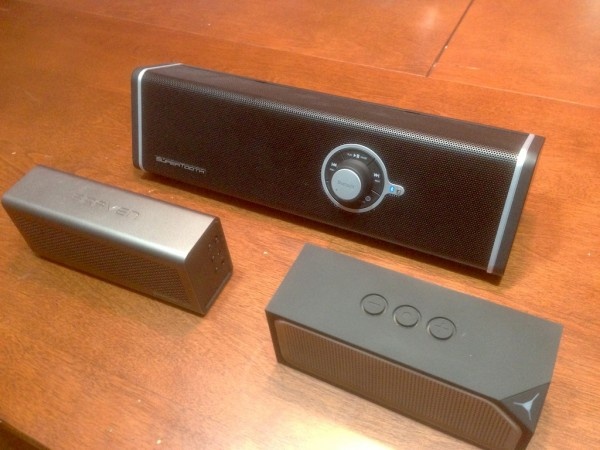
148Apps received three different portable Bluetooth speakers recently, and we decided to put them all through their paces, to better understand which ones might be better for specific uses. We’ll be looking at the Braven 600, the CubeEdge, the Disco 2, and the Logitech Boombox (which we also reviewed here).
Braven 600
This little monster is a powerful portable speaker that retails for $149.99. It comes in two colors, red and gray, and has features like a long battery life, a USB port to charge your iPhone on the go, and a nice little bag to carry it around in so as to avoid scratches on the metal case. Like most small speakers, the bass response is limited, but resonant enough for most uses. The highs are crisp without being brittle, and the mid-tones are warm without muddiness. The volume ceiling is low, as you might expect for a tiny speaker, but can reasonably fill a smaller room at higher volume.
I was able to use the Braven 600 for hours on end without the need for a battery charge; upwards of six hours during one testing session. It comes with a little square wall plug and a micro USB cable to charge it up with. I connected my iPhone to the speaker’s USB port when the Braven had a full charge; it brought my iPhone up to about half full. While you won’t be able to use the Braven as a full juice box, having that little bit of safety is a good thing. Pairing the device with my iPhone, iPad, and Mac was super simple; a press and hold on the phone icon button sets the Braven 600 to pairing mode and the iPhone or Mac did the rest. The speaker phone functionality is equally as easy to use, and never seemed to need any re-pairing, unlike many other accessories I’ve tried.
Overall, the Braven 600 is a great mini portable speaker with all the trimmings, and is well worth the asking price.
Supertooth Disco
Here’s a speaker that’s much larger and more powerful than the other two in this roundup, delivering 28 watts of power and a bass boost feature that will please fans of the boom. With a larger profile than the Braven or the CubeEdge, the Supertooth Disco can reach much higher volumes, and boasts a spectacular stereo separation when doing so. The design of the unit makes it stand out on any shelf, with a large, offset analog knob for volume, and audio option and media control buttons around the knob in a circle.
The battery life topped out at about three hours of continuous use at a medium to low volume setting, which isn’t horrible, but does limit where you could take the speaker. It comes with a neoprene case that has cutouts in it to allow you to use the speaker inside, making it just a bit more spray and sand resistant, perhaps. The plug is a standard wall-wart affair with a round, non-usb charging plug. Pairing the Supertooth Disco is a breeze, though having to turn it off and then on again to pair with a second device feels kludgy.
At $99.00, the Supertooth Disco is a fantastic small speaker in the same class as the Logitech Boom Box we reviewed a while back. It’s non an ultra portable like the other two here, but it does have great stereo sound and the ability to pump up the volume for larger spaces.
Cubedge Edge.Sound
This is the ultra portable speaker with the least amount of features, and that’s by design. The $149.99 speaker features three buttons along the top for up and down volume and pairing, plus an on/off toggle on the back. That’s it. It’s charged by a wall plug and micro USB cable, comes in a cute little carrying bag, and has a cool looking design with the upper right front corner looking like it’s been sliced off. This corner lights up blue while in operation, and red when pairing or charging. The sound profile is a bit light, though it’s hard to tell much of a difference between this and the Braven; they’re both similar size and quality.
I had trouble keeping the Edge.Sound charged between uses, though that could purely be user error. Pairing is super simple, but it did require a couple of re-pairings between testing sessions. It’s super light and rugged; it feels like it could take a little bit of abuse without any problem at all. The casing is textured rubberized plastic around all sides but the front, which has a silvery metal mesh grid for the sound to come out of. The speaker phone function works as advertised, with callers saying I sounded just fine when using it.
Roundup!
So, in the final call, I’m happy to recommend all three of these small and ultra mini portable bluetooth speakers. When comparing the Edge.Sound to the Braven 600, the difference in sound is negligible; the rugged design of the Edge.Sound is as valid a reason to pick it up as is the extra charging port on the Braven 600. WHich you prefer will be a matter of taste and choice. If I had to choose, I’d go with the Braven 600.
The Supertooth Disco, on the other hand, is my new favorite mid-sized portable bluetooth speaker, with amazing stereo sound, high volume capability, and a variety of attractively placed on-device buttons to let you run your music without having to pull out your iPhone or iPad.
Whichever speaker you choose, however, you won’t be disappointed. These types of speakers are popular for a reason, as they allow you to have better sound out in the wild than your portable devices can produce on their own for a fairly attractive price.
In each case, the new iKlip models provide ways in which to mount and position the iPad or iPad mini, thereby enabling users to operate devices hands-free as well as set up the perfect viewing angle towards a microphone stand, tabletop or anything else of use in the studio. It’s the kind of solution that’s ideal for presentations as well as music studio work, or just around the home.
The iKlip 2 offers such a solution for iPad users, enabling them to attach any type of iPad (from the 2nd generation and later) to a microphone stand securely, as well as be able to adjust the device to just the right viewing angle. For iPad mini users, there’s the iKlip 2 for iPad mini, offering the same potential.
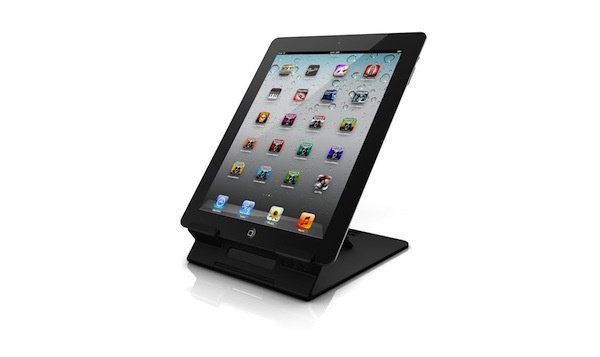
Tabletop stands are also available in separate iPad and iPad Mini versions, with the iKlip Stand making things much simpler. It’s the ideal stand for connecting the iPad above the desktop so that it’s easy to position equipment, such as a musical keyboard or mixer underneath, but it can also be used in the home. Too small an office desk to fit all the devices easily? Use the iKlip Stand to solve such a problem and revel in the extra space!
The iKlip Studio offers a similar solution but is specifically designed for use on flat surfaces, and aimed at those apps that require “energetic tapping and beat making”, tying in nicely with the many DJ based apps already out there. Non-slip rubber grip feet, as well as adjustable viewing angles keep the iPad safe and secure, plus it folds flat, lending itself perfectly to easy storage.
The iKlip 2 for iPad and iKlip 2 for iPad mini will be priced at $39.99 or €29.99 excluding tax, while the iKlip Stand for iPad and iKlip Stand for iPad mini will be $59.99/€49.99. The iKlip Studio for iPad mini is priced at $29.99/€24.99.
We’re big fans of IK Multimedia’s accessories and I suspect these new iKlips will be quite the hit when they ship during the first quarter of 2013.
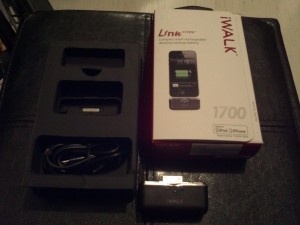
So iWALK came out with a useful little external battery pack recently, the iWALK Link 1700i. It claims to offer just about a full phone charge in an adapter that could fit on a keychain. It’s more convenient than lugging around a separate power brick with USB cable, or using one of those bulky Mophie cases. For iPhone 4S and earlier owners, it promises to be an extremely useful device. Just one problem: it’s got the “old” 30-pin dock connector, not Lightning. So, iPhone 5 owners are out of the loop with the Link1700i, right?
Well, not necessarily. Apple does make a 30-pin-to-Lightning adapter, which provides charging and audio support to the iPhone 5. Which means that the Link 1700i may just be useful for iPhone 5 owners just yet.
Using it with the adapter on the iPhone 5 gives it one big advantage: it’s actually more comfortable to use it in portrait versus on a 30-pin device, as the Lightning adapter provides enough space to grip the phone and do things like typing and scrolling with the Link 1700i safely out of the way. Landscape is a different story, as the i-Walk already provides a bit of an uncomfortable barrier; it’s ludicrously bigger on the iPhone 5. I’d suggest not playing games while charging with this thing, though I could hold it in a way where my thumb was not reaching over the battery. Still, I don’t recommend it.
While the box claims that it has 1700 mAh battery capacity power, in practical circumstances, I could rely on it to recharge about 3/5 of my battery, particularly with it being used occasionally in that time. Part of the problem could be the connection: I noticed that the iPhone would act as if the Link 1700i was being occasionally disconnected and reconnected when unlocking the screen, or even just periodically while it was in my pocket. I haven’t noticed this when using the adapter otherwise, and haven’t seen it in testing on my iPod touch 4th gen either. Using it with the dock adapter does leave some space for headphones, but it’s a tight fit, and would likely cause damaged headphone connectors.
The Link 1700i comes with two lids by default: one with a slot for the loop to be put on a keychain and one without. As well, it comes with the micro-USB cable to recharge it, the port being conveniently located on the side of the battery.
While it’s hard to measure the device’s actual effectiveness because it’s working in a roundabout way on the iPhone 5, it is far from an ideal solution. However, this is in part thanks to Apple: by using a new proprietary connector and then only selectively licensing it and not giving it to peripheral manufacturers before its unveiling, those looking for a convenient external battery are forced to turn to less-than-ideal options. Have an iPhone 4S or earlier? This seems like a perfectly fine solution. iPhone 5? Be prepared to deal with the imperfections thanks to Apple.
Usability Rating:
Integration with iPad/iPhone Rating:
Hardware Design Rating:
Re-Use Value Rating:
Overall Rating:
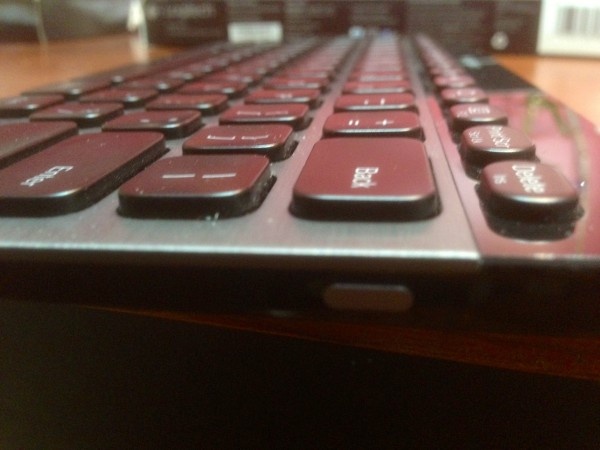
When I received the Logitech Bluetooth Illuminated Keyboard K810, I was excited. HEre was a keyboard that I could use with my iPad and iPhone, as well as my Macbook, on the go. I end up hanging out in quite a few places where I need to write, and a fuller sized keybaord makes that possible with the iPad mini I seem to be carrying around, as well. I’ve taken my Apple wireless bluetooth keyboard around with me, so wanted to see how this K810 illuminated model would do in comparison.
As a typing platform, the K810 shines. Pun intended. It’s solidly built, feels well-engineered and produced, and is a delight to type on. the keys are spaced far enough apart that it feels comfy to use in any configuration; even on my lap (which is how I’m typing this review right now: iPad mini on the arm of my recliner, Logitech keyboard in my lap). The battery is rechargeable, another leg-up on the Apple keyboard, via a micro USB port on the left hand side of the unit. The power toggle switch is on the right side of the unit on the vertical face. It’s a solid-feeling toggle, too; very well put together.
Where the keyboard really blasts past my previous favorite Apple bluetooth keyboard is in the three-device switching ability. ONce the keyboard is initially paired to one device, it can then be paired with up to two more at the same time. Switching between devices is then handled via the F1, F2, F3 keys. I was able to pair the Logitech Illuminated Keyboard to my iPad, my iPhone, and my MacBook Air all at once; pressing the corresponding F key allowed me to type first on the iPad, then the MacBook Air, then the iPhone in a text message, then back to the iPad. It’s no muss, no fuss configuration and wow is it useful.
The illumination is a nice extra, even in low light. It doesn’t seem to affect the battery life too much, as I’ve only charged this bad boy once in a two week period. I’d say it has aa much if not more battery life than the Apple keyboard, though I didn’t measure the specific times each needed a recharge or new batteries (in the Apple keyboard’s case).
My only niggling issue is the Windows-centric labeling on the bottom row–Alt for Option, Windows symbol instead of an Apple Command key symbol. If Logitech makes a version of the K810 with Apple symbols on it, then it would be my perfect keyboard. THey do, however, make something similar for the Mac, called the Easy Switch keyboard, but I was not sent that unit to review.
For now, the Logitech Illuminated Bluetooth Keyboard K810 is still my go-to keyboard for all applications: writing on the iPad, using my MacBook Air with an external monitor and mouse, and for answering text messages on my iPhone wile working on the computer at the desk, or using the iPad in my armchair. My accuracy and speed is not affected at all, especially since I’m used to using the smaller format of the Apple wireless keyboard.
Developer: SteelSeries
Price: $79.99
Device Reviewed With: new iPad, iPhone 5, iPad mini
Usability Rating:
Integration with iPad/iPhone Rating:
Hardware Design Rating:
Re-Use Value Rating:
Overall Rating:
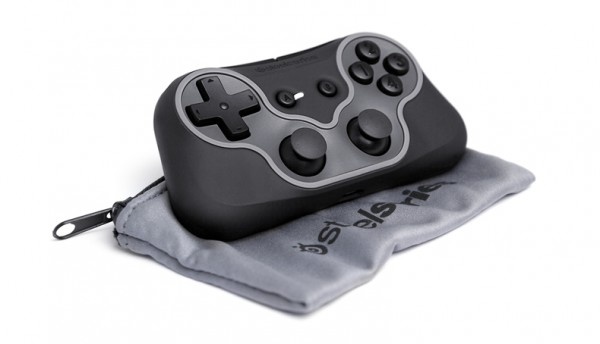
The SteelSeries Free mobile wireless controller is a wonder of miniature design and quality. It’s solidly built, feels good in the hand, and controls a wild variety of games on iOS, Android, Mac and PC. This review focuses on iOS gaming, but I also tested out the controller with Mac & PC computers, finding it easy to connect and use with a variety of games.
Pairing the SteelSeries Free is a simple matter of tapping into the Bluetooth settings on an iOS device, holding down a couple of buttons on the controller, and waiting a few seconds. That’s it. No pairing number emulation, no weirdness, it just works. As soon as the controller is paired, popping into any one of the almost 100 compatible games will get players rocking arcade games with a separate controller. The SteelSeries Free uses Bluetooth keyboard emulation, similarly to the ION iCade system, so iCade games are also compatible here.
The tiny little controller feels good even in my big hands, with its dual sticks, four face buttons (plus start and back buttons), two shoulder buttons, and a d-pad for all sorts of game control needs. SteelSeries has extensive experience in the pro-gaming scene, and it shows here with a quality vident from the first touch. There’s even a cute little bag to keep the controller in, away from potentially scratching things deep in a bag or pocket.
The only niggles I have here are not even SteelSeries’ fault. One, I’d love to see a controller that can do more than emulate the iCade. While it works fantastically for arcade and platform games, I’d like to see better support for dual-stick shooter type control schemes that really need two analog sticks. The other problem is that since the SteelSeries Free uses Bluetooth keyboard emulation, the iOS keyboard doesn’t pop up when the device is paired with the controller. Again, it’s a systemic issue, rather than one with the controller, but with such a tiny controller, it’s easy to forget that there won’t be a keyboard to use until the external game pad is disconnected.
Overall, the SteelSeries Free mobile wireless controller is delightful to use, with a solidly built and fantastically designed controller that is extremely portable and easy to use with a wide variety of gaming devices. While it would be nice to have support for games on iOS that require more than iCade-style Bluetooth keyboard emulation, what’s here is as close to mobile gaming perfection as is possible in today’s iOS world.
Developer: Sensu Brush
Price: $39.99
Device Reviewed With: new iPad, iPhone 5
Usability Rating:
Integration with iPad/iPhone Rating:
Hardware Design Rating:
Re-Use Value Rating:
Overall Rating:
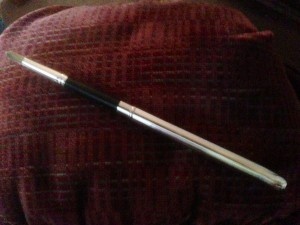
The Sensu Portable Artist Brush And Stylus is a revelation for digital artists, iPad enthusiasts, and anyone who wants the portable convenience of a paintbrush that’s also a stylus. The paintbrush hairs are synthetic and infused with conductive properties, and were originally created for the cosmetic industry to help fine powders release from make-up brushes when they contacted skin. There’s a luxurious feel to the Sensu brush; it connects with the touchscreen devices I tested it with with a deliciously tactile sensation. It can be used with any painting or drawing app on the iPad, iPhone, or iPod touch, making this a versatile tool.
The build of the Sensu Brush And Stylus impresses with its solidity and careful craftsmanship. When the metal cap is closed over the brush hairs, I’m reminded of my treasured Bullet-style space pen. The rubberized hard stylus nib is exposed when the cap covers the brush end, and this cap can be reversed to fit over the stylus end, as well, making the Sensu look and feel like a traditional artist’s brush. The website warns users to use care when replacing the cap over the brush end; this is a warning to heed. The metal cap could certainly bend one or more of the brush hairs, as the tolerance for fit is precise.
The rubber stylus nib is smooth, non-stick, and is made to last. I was able to draw, tap buttons, swipe, and type with little effort. It doesn’t stick or stutter on the screen, and feels as at home on the small iPhone 5 screen as it does on the iPad 3. The brush end is delightful, feeling as familiar as an actual paint brush. At times, the smaller size–for portability’s sake–can challenge an artist. My painter friend liked having the rubber nib and the brush available for use at the same time, but felt that the shortness of the cap-less Sensu Brush and Stylus felt awkward. Perhaps a second, longer and less portable model will be created in the future.
Overall, the Sensu Portable Artist Brush And Stylus is a triumph of form and function, letting digital artists create works of art on the touchscreen of an iPad or other device using a familiarly formed paintbrush tool. At $39.99, the brush/stylus tool won’t break the bank, and is a fine addition to any digital artist’s toolbox.
Developer: IK Multimedia
Price: $99.99
Device Reviewed With: new iPad, iPhone 5
Usability Rating:
Integration with iPad/iPhone Rating:
Hardware Design Rating:
Re-Use Value Rating:
Overall Rating:
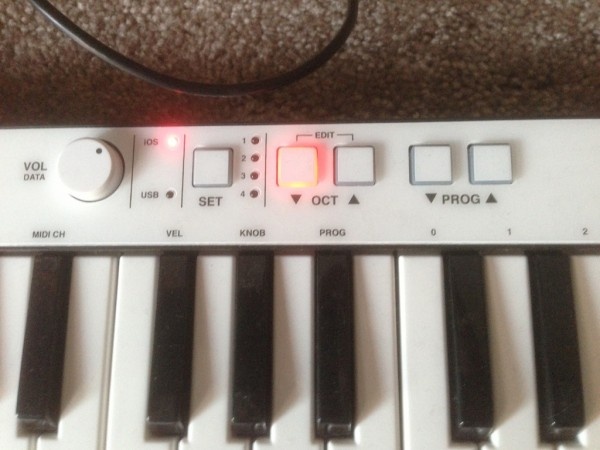
IK Multimedia might be trying to take over the music peripheral world. The company has a wide range of apps, instruments, and support items that could, in theory, be used to build a band entirely out of iOS instruments. The latest offering from this prolific manufacturer is titled iRig Keys, a super portable iOS keyboard with 37 velocity-sensitive keys, modulation and pitch wheels, low power consumption, and core MIDI compliance. The iRig is aimed at the portable musician, the composer on the go, the backpack virtuoso, and as such, it succeeds brilliantly.
The manufacturer offers the free version of iGrand Piano or SampleTank, both IK Multimedia, as the apps to use with the iRig Keys, but this unit will work with any MIDI app on the iPad, iPhone or iPod touch. It comes with an included USB cable to plug into a Mac or PC as well, opening up the use of any core MIDI compliant app on a laptop. I was able to make the keyboard work with iGrand, SampleTank, and GarageBand. The setup was as simple as plugging in the keyboard via the 30-pin dock connector and firing up any one of the keyboard apps on my iPad 3. I didn’t notice a significant battery drain while using the iRig Keys unit, either.
The small size of the iRig Keys is the killer feature, of course, as it can easily fit into a backpack or even just carried by hand. It’s small, light, and the controls and keyboard keys all feel well-made. The keys are indeed velocity sensitive, and the handy data send/volume knob feels solidly attached. The octave up/down buttons don’t feel chintzy at all, and the two expression wheels don’t wobble when used. All in all, the iRig Keys shows a superior build quality that should help it hold up over time as it moves from place to place, in and out of backpacks and shoulder bags.
For on-the-go composition, song recording, or piano practice, iRig Keys works well for an attractive price. The unit is powered by the included iOS or USB cables, but does not draw excessive amounts of power to drain the iPad or iPhone attached to it. The keys are easy to play, feel solid enough for mobile use, and will allow musicians at any level to create and record music as inspiration strikes.
There has been a very exciting rush by TV show producers to get their content onto mobile devices. But it hasn’t been without a good number of issues. First, the content is split amongst dozens of different apps. Next, the shows have seriously stupid usage rights. Sometimes you can only watch shows weeks after first aired. Some shows expire after a few weeks only to appear again many months later. Trying to keep it straight and figure out where any show is can be annoying.
What about your DVR? I have been a long term fan of TiVo. I bought the first box they made and have upgraded multiple times over these past ten plus years. The problem with TiVo is that they have been very slow to adapt to new technologies like streaming content to mobile devices. Until recently you just couldn’t do it without special PC software and a hours of processing time. While TiVo has released a new streaming device, it only works locally unless you remember to download your shows first. Better, but still not good.
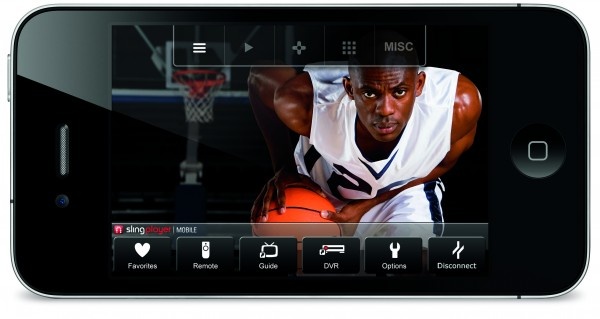
Sometimes I just wished I had access to everything on my DVR while on the go. Well, that’s where Sling comes in. A wholly owned subsidiary of Echostar, Sling has been making devices to give you access to your recorded and live content while on the go for years. They do this by having their box sit between your cable box or DVR and your TV. You connect the output of your cable box to the Slingbox and the output of the Slingbox to your TV. While this process can be a bit tedious with many of the included cables to connect, the included instructions are clear and easy.
We’ve taken a look at the Slingbox and player before but a lot has changed since then. For one, the latest Slingboxes support full 1080p HD streaming, assuming you have a good enough connection. They have also been updated to support the iPhone 5 screen for widescreen 16:9 viewing. And at some point after our previous review was posted, support was added to allow streaming over cell networks.
The iPad and iPhone versions of the app both do a good job allowing you to stream from a Slingbox. The iPad version is much easier to use due to the larger screen size, allowing for more controls on the screen. While the iPhone interface isn’t horrible, it could use a rethink.
Overall, the Slingbox 500 was easy to setup, if not super quick. Once it was installed it worked well. Connecting to it from remote was quick and worked well. Changing or selecting a recorded show to watch can be a bit tedious, though, with a 3-4 second delay for each remote key press. Once the streaming started, very few hiccups were noticed.
Is the Slingbox 500 the ideal way to get your content on the go? No. But it is, by far, the best very option right now to give you access to that content on the go. And let’s be honest, it’s likely to be the best option for some time. Access to content will get much stricter before it gets more convenient.
The Slingbox 500 is available online or at Best Buy now for $299.99.
Developer: Apple
Price: $329 for 16G WiFi
Device Reviewed: iPad mini 16G Black
Hardware Design Rating:
Usability Rating:
Graphics/Display Rating:
Battery Life Rating:
Overall Rating:
When I first heard of the iPad mini, I was fairly underwhelmed with its technical specifications, of course, with its A5 processor (same as an iPad 2, now two generations “old”) and its non-retina display (163 pixels per inch? Huh?).
I was underwhelmed by the price, as well. $329 for an underpowered, low-resolution mini tablet in a market that supports $199 as the standard point of entry?
Then I got it into my hands. The feel of the thing, the warmth of the design, and the fact that this is an iPad, through and through, has changed my mind about the iPad mini. I love the way it sits in my hand, I love the cute little smart cover, I dig the fact that I can sit and read comics for an hour or so without really remembering that I’m using a piece of technology. I can download any number of apps that I already own to it, and run them in this new size and format. Simply put, the iPad mini fills a (small) spot in my gadget bag that I hadn’t been able to previously.
Let’s put it in perspective. I have a Macbook Air 11-inch laptop, an iPhone 5, and an iPad 3 in between. I use each device quite a bit, depending on the situation. The iPad, specifically, has become my laptop at home, unless I’m working. It’s fantastic to check news via Flipboard, social networks with Facebook and Twitter, and look through email. I play games on it quite a bit, of course, as the iPhone is just on the small side for me when I want to immerse myself into a game like Order and Chaos, thrill to the retina display on something like Infinity Blade II, or see the screen in better detail in Fieldrunners 2 HD. As a device I never thought I needed, the iPad has quickly found a place in my daily life.
And now, so has the iPad mini. In just a few short days, I find myself grabbing it when moving from room to room more often than I do my iPhone. I can do all of the social networking, game playing, streaming music, voice chatting, and email checking that I previously did on the iPhone around the house, only now I use the iPad mini so as to not deplete my iPhone 5’s battery, leaving it free to be available for phone calls and texts from non-iOS using friends.
This is a delicious device. It begs to be touched, used, played with. Here’s why.
Case Design The design of this thing is pure Apple. The black version of the iPad mini has the look and feel of the iPhone 5 in terms of the slate aluminum chassis on the back case. The smoothly rounded edges feel good in the hand, and the metal feels good to the touch, grippy, even. There’s not a sharp edge on the iPad mini, which invites it into the hand, welcomes human touch.
The shape of the screen itself is luxurious, allowing an immersive experience that I’ve never felt with other smaller tablets. The length to width ratio feels just right in portrait or landscape mode—it makes typing with two thumbs viable in portrait mode and a more cramped touch typing available in landscape. Games look and feel GOOD on the iPad mini, perhaps due only to the fact that I’m used to them in this ratio.
The weight, or lack thereof, of the iPad mini is mind boggling. I’m hard pressed to tell whether it’s any heavier than my iPhone 5 when holding one in each hand and doing the “pretend scales” thing. It’s light and airy, yet satisfyingly tactile. This is a device that I can hold in my hands for the hours that a good novel or immersive gaming experience calls for. My only nitpick here is the smaller matte area on the sides of the screen when holding the iPad mini in portrait view. Adding a smart case helps, but it’s still awkward to hold on the side of the screen without activating something on the screen at the same time. Rotating the iPad mini to landscape is a decent stopgap, as the matte area on the “top” and “bottom” of the iPad is thick enough to keep my fat thumbs off of the touch screen.
Camera Performance The camera is pretty good. It takes great photos in good lighting conditions, and decent ones in low light. Facetime and Skype video chats are well served by the front facing camera, though still images and videos suffer a bit in quality when viewed on other, higher resolution devices. For quick snapshots that can be connected to your Photostream, then, the iPad mini’s camera is great. Though, please, don’t take too many photos in public with your iPad mini. It’s only marginally cooler than taking them with a full sized iPad tablet. If you need high-quality, high-resolution pictures, use a real camera, ok?
While not as interesting as the other new iOS controller we talked about earlier, the Duo Gamer, the Duo Pinball controller is a pretty cool device, but perhaps with a very small audience.
The Duo Pinball is well made, solid, and the buttons and spring launcher both feel of pretty good quality. The device uses AA batteries, an AC adpater would have been nice for the price. The iPad attachement is a bit fiddly, but solid once you get everything lined up properly.
Actually playing the games, works well. The controls are responsive and the addition of the spring launcher is fantastic.
The real problem with this device is that it only works with Pinball HD Collection. While a great pinball app, it’s still too restrictive to have a $60 controller for, except for the most die-hard pinball fans.
The Duo Pinball controller will be available soon from Apple.com, Traget, and Amazon. But I’m guessing most readers will wait for it to go on sale.
Developer: IK Multimedia
Price: $39.99
Device Reviewed With: new iPad, iPhone 5
Usability Rating:
Integration with iPad/iPhone Rating:
Hardware Design Rating:
Re-Use Value Rating:
Overall Rating:
IK Multimedia’s iRig Pre does the two things it’s made for very well. It connects any professional quality microphone using an XLR connection to your iPhone, iPad or iPod touch, and it provides pre-amplification to the microphone signal with phantom power to boot. It’s small enough to drop into a gig bag, just a bit bigger than a 9 volt battery, which is included so as to not waste that precious iPhone or iPad’s battery. It connects to an iOS device via a 16 inch 1/8 inch cord right to the headphone jack.
The iRig Pre allows any mic with an industry standard XLR plug to connect to an iPhone or iPad. It can be used with any app that requires a microphone, including GarageBand and iRig’s own VocaLive and iRig Recorder. It has a gain control dial, +48 V of phantom power, an on/off switch, and a headphone jack to monitor the signal while recording. The battery life is touted at 30 hours with dynamic microphones and 10 hours with condenser mics with their own phantom power. My own dynamic mic testing showed no drain on my iPad battery power when using it, and the included battery is still going strong after several hours of use.
The only problem here is similar to one I pointed out when the iRig guitar connector came out: there’s no easy, un-adapted way to take the sound from the iOS device to a mixing board, PA, or amplifier. The guitarist in me rejoiced when the iRig Stompbox released, since that allowed me to use my iPhone as a multi-effects guitar processor with a stage-ready interface. The iRig Pre isn’t stage ready without a kludgy 1/8 to 1/4 adapter and then another long cable. If IK Multimedia can come out with a stompbox with the iRig Pre inside, that will be a must have device.
Even without that easy live-music functionality, though, the iRig Pre still makes a lot of sense for professional or hobbyist musicians who use their iPad or iPhone to record vocals in a variety of apps. If singers have a need to connect a real microphone and/or a preamp to their iOS device for a decent price, they can’t go wrong with the iRig Pre.
Sure we’ve seen other good controllers for iOS like the iCade. But the Duo Gamer is the first controller approved and supported by Apple. Let that sink in. The first controller officially approved and supported by Apple.
It’s the first game controller that doesn’t need to pretend like it’s a keyboard; it can be a controller. Core gamer nirvana? Slow down those dual analog stick loving thumbs for a second and take a look at this beast.
It’s true, it’s a real controller for iOS, but there are some downsides. Well, one really big one. You see, to meet Apple’s guidelines for a fully supported external device, the device can only work with a single developer’s apps. In this case, that means that this controller will only fully work with Gameloft games. It is not, and can never be (under current rules) a universal controller. It is yet to be seen if other developers may be able to unofficially support it. But even if so, without rule changes by Apple, it will only be supported by Gameloft games.
But back to the good stuff. This is a dual analog controller, and it is for Gameloft, the presumed leader in first person shooters on iOS. And if any genre needs strong controller support, it’s FPS.
To use the controller, it first needs to be connected to your device. To do so, you connect the controller via Bluetooth. A simple and quick connection. It works with any iOS device that supports Bluetooth. A recent iPhone, iPod touch, or iPad should work fine.
Once the Duo Gamer is conected, if you don’t have any supported games installed, a dialog pops up and takes you to the App Store with a list of supported games. That’s what official Apple support gives you. A special window on the App Store just for your device. Huge.
I put the controller through it’s paces. And while it may not be the most comfortable controller to hold, a little thick, heavy, and blocky for long sessions, it is the best I’ve tried for iOS. Perhaps the official support makes it a bit more responsive than others, not sure. I’m not completely sure of the technology being used, and the companies involved have been expectedly quiet on it.
The Duo Gamer has dual analog joysticks, a 4-way gamepad, and six buttons (ABXY on the front and two shoulder buttons). That makes it fairly functional for the games we tried. And with the greater hardware support–meaning it doesn’t have to play tricks and act like a keyboard–it functions much more smoothly. With other controllers we would occasionally lose a button click or joystick movement–likely a key press event being missed. This hasn’t happened with the Duo Gamer controller. Impressive.
After spending a lot of time in NOVA 3, one of the three games currently supported (of a promised six or more), seemed like a dream compared to the touch system, which was already one of the best for a first person shooter on iOS. It’s how a game like this was meant to be played. Targetting was a breeze. Movement seemed much more natural. I flew through the already familiar levels, the dual analog sticks giving me new found precise control. It’s like a breath of fresh air. Though the button mapping could be better, it is hopefully fixable in an update to NOVA 3.
Asphalt 7 was likewise a great treat. Really being able to use fine control, the car steering alone is almost worth the $80 cost of the controller. Order and Chaos benefits as well, but perhaps the least of the three.
The Duo Gamer controller will be available in a couple days via the Apple online store and Amazon. The downside is it will set you back $80. Perhaps a bit steep when you consider that’s more than the cost of all of the games it supports combined. But, if you are a core gamer, looking for an experience on iOS like you are used to on consoles, it’s easier to justify.
We can only hope that this controller will be a huge success and we see Apple loosen the rules around external devices a bit. A universal controller would really be a huge boost to the core gaming segment on iOS. But for now, we at least have this controller for the developer making some of the best FPS games on the App Store. It’s a step in the right direction.
As I’m sure everyone on the planet knows, the iPhone 5 comes out this week. If you are a heavy iPhone user you no doubt have some sort of a battery like our favorite, the Mophie for your iPhone. With the iPhone 5 release and the new Lightning connector, these old devices won’t work. And Mophie and others don’t yet have Lightning and iPhone 5 compatible devices available. We’ve found a solution, and have also found a great deal for you.
New Trent makes some of our favorite external batteries for recharging all kinds of USB connected devices. The IMP 120D is a massive 12,000mAh at about 1 1/2 the size of a deck of cards. That’s enough to recharge the iPhone 5 multiple times. It is a USB charger — meaning that you plug in a USB cable into the battery and then connect that to your device to charge it. So it works with a wide variety of devices. We’ve used our with iPhones, iPads, other phones, even digital cameras.
We got an email about a special deal from New Trent and Amazon.com, if you buy the New Trent IMP 120D, and use coupon code 3IMIRROR on Amazon, you get a second, slimmer 6,000mAh battery ($40 value) for free. Here’s how to do it:
Add the iMirror, 6,000mAh battery to your Amazon cart: New Trent iMirror
Go to your cart on Amazon and enter promo code: 3IMIRROR and the price of the iMirror will be discounted to $0! One note – we have no idea how long this deal will last. If this looks good to you, buy it quickly.
Now when you get the batteries, just plug in the Lightning USB cable you got with your iPhone 5 and you are all set to recharge on the go.
Developer: IK Multimedia
Price: $59.99
Device Reviewed With: new iPad, iPhone 4
Usability Rating:
Integration with iPad/iPhone Rating:
Hardware Design Rating:
Re-Use Value Rating:
Overall Rating:
One of the biggest issues I had with the original iRig guitar connector itself was its non-standard design. It works really well when playing a guitar through it to the iPhone or iPad and then listening with headphones, but there was no easy way to connect it to an amp without adapters and such. Adding the pedal setups in Amplitube Fender, for example, seems like a great way to expand the sounds available for my guitar, but if I can’t use it on stage easily, it’s not going to get used.
Enter the iRig Stomp, an actual stomp-box-sized peripheral that allows a standard guitar connect via a standard cable through to an amplifier in a standard guitarist’s stage setup. The iRig Stomp looks and acts a lot like any other standard guitar pedal, and thus has more of a chance to be included at gigs.
The solidity of the box is commendable, from the sturdy metal construction of the box itself to the solid-feeling clicker button and large input gain level knob. The device looks and feels as indestructible as my other guitar pedals, and doesn’t look out of place on my pedalboard.
To connect the iRig Stomp, it’s a simple matter of plugging in a guitar via a cable to the right side of the stomp box, and then out from the left side to an amp via the L/Mono jack, or to a stereo mixer via the R and L jacks. There’s a 1/8 inch headphone jack on the top, for private practice sessions, and a second, similar sized jack to connect the iRig Stomp to the iPhone or iPad with a compatible app, like Amplitube. The clicker button on the bottom of the pedal is a bypass switch which will let your guitar play through to the amp without the app guitar sounds. I sort of wish the button was configurable to a pedal “on/off” setting like most standard guitar pedals, but that functionality is contained within the app itself.
Overall, the iRig Stomp is a fantastic piece of guitar gear, ready to integrate with any professional or hobbyist guitar pedal setup. It’s comparatively priced to other boxes at $59.99, and allows players to control a ton of guitar-centric apps available on the App Store today.
Developer: Logitech
Price: $129.99
Device Reviewed With: New iPad
Usability Rating:
Integration with iPad/iPhone Rating:
Hardware Design Rating:
Re-Use Value Rating:
Overall Rating:
The new Logitech Solar Keyboard Folio is, without a doubt, my favorite iPad keyboard to date. It’s well-made, easy to type on, fairly protective, and – check it out – uses light energy! OK, the review is done. Move along.
Just kidding. Needless to say, my week with this iPad keyboard has been instructive, and while the Solar Keyboard Folio isn’t the “perfect” keyboard case for the iPad, it has a couple of features that sets it above the rest.
First up, there’s the solar power thing. Look, charging my keyboard with a mini USB cable is a serious hassle. It doesn’t charge my iPad (why not?), and it’s yet another device I need to make sure it powered up before I leave the house for serious writing. I already have to charge up an iPhone, an iPad and a laptop (sometimes), why do I want to have to plug in a keyboard? I don’t, that’s why. Keeping the Solar Keyboard Folio charged is a simple matter of setting it down in some decent light, indoor or outdoor, and letting it soak up the magic photons. That’s it! I haven’t had to consciously think about charging this thing since the day I got it. This is seriously brilliant.
Secondly, there’s the two viewing angles. The iPad is held in a solid protective grippy section, and snaps in fairly well. This holder has two little pegs on either sides of the bottom corners that fit into the bottom keyboard section, at a typing angle, and – omgyay – a viewing angle, as in the picture at the top of this review. I know of no other keyboard case that allows both of these angles, and it transforms the way I use my iPad with the keyboard. While other iPad keyboards force the typing angle, making things unwieldy when I want to just use the touchscreen. the Solar Keyboard Folio has found just the right mix of flexibility here. As long as I’m happy with landscape orientation, of course.
Which is one of two downsides of this product. There isn’t a way to use the keyboard with the iPad in portrait mode, making longer documents less usable. I’d like to be able to use the iPad in either orientation, depending on the task at hand, but the Solar Keyboard Folio just isn’t designed with that possibility.
The other issue here is the awkwardness of using an iPad in a folio-style case with a keyboard attached. It’s possible to flip the keyboard around to the rear of the iPad and hold it for touchscreen use, but it’s not comfy. I ended up pulling it out of the folio to use when I didn’t want the keyboard, which sort of defeats the purpose of an always-on folio, right?
Bottom line, though, this is the iPad keyboard to beat right now. The keys are solid and responsive. Typing on this thing is a joy, though as with any iPad-sized keyboard, the smaller size takes a bit of getting used to.
iPhone gaming and mobile phone gaming in general are poised to take over the entire handheld gaming market but there is still one big thing holding them back. Touch controls can be great but they are no replacement for responsive, dedicated, physical buttons. Plenty of hardware manufacturers have tried to fix this problem with varying degrees of a success and now a new challenger, Bladepad, is trying to enter the fight.
Bladepad is a slim, protective case that adds a directional pad, two analog sticks, four shoulder buttons, and four face buttons to an iPhone all with full back-lighting. Like a PSPgo or Xperia Play, players can slide the buttons back underneath phone when they are not needed or just easily remove the case entirely. The case and phone can be simultaneously charged over USB and “the battery life is competitive with both the Nintendo 3DS and Sony PS Vita.” Bladepad, LLC says that the product will work with any iOS device using Bluetooth 4.0 including the iPhone 4S, the new iPad, and presumably whatever new iPhone comes out this fall.
However, the project is still in need of funding. Those interested should check out the Bladepad Kickstarter page where one can pre-order at reduced prices along with shirts and other prizes. Bladepad is currently slated for release this holiday season for $99.
Usability Rating:
Integration with iPad/iPhone Rating:
Hardware Design Rating:
Re-Use Value Rating:
Overall Rating:
The Mophie Juice Pack PRO is a big, rubberized, super protective case that provides military-grade sand and dust protection, light splash and rain protection, and impact protection in a huge, can-barely-fit-in-a-pocket case that includes its own belt clip.
I’ve long been a fan of the Mophie line of products, enjoying their minimalist design and higher-end battery charge capabilities in an integrated case. The Juice Pack Pro also promises 150 percent extra battery charge, but what that number refers to is not clear, as I got about as much extra charge from the Juice Pack PRO during my testing as I do from my original Juice Pack Plus. Both need to be recharged after about one to one and a half full iPhone 4 battery charges with regular usage.
The Juice Pack Pro does seem pretty sturdy, though. The ports are covered with heavy duty rubber, which also acts as a shock or drop protector. The included belt clip is sturdy, and the encased iPhone snaps into it solidly, without a worry that it’ll drop out in the out of doors. The entire case snaps around the iPhone 4 or 4S like an Otterbox, a competing rugged case that does not include a battery pack. With a case this rugged, though, I kind of expect much more water-proofing, a lack that mophie actually has to point out in the included manual. If they have to point it out, it’s an obvious lack.
I took the case camping with me and it did very well, though I would love to have had an extra iPhone charge for my last day. Some lint and dirt did get under the top screen protector plastic, therefore getting stuck between it and the iPhone screen proper. In addition, the extra plastic film takes some getting used to and did hamper easy selection of icons at times.
Ultimately, whether a purchase is warranted will come down to preference. If there’s a need for a rugged, solidly built iPhone case that includes a battery pack, the Mophie Juice Pack Pro is the way to go. The case is too big for everyday use, however, and the battery pack doesn’t provide any more life than the $30 less expensive Juice Pack Plus (these names are confusing!). The case is extremely difficult to take off and on, so once the iPhone is in, it’s staying there.
Developer: IK Multimedia
Price: $99.99
Device Reviewed With: new iPad, iPhone 4
Usability Rating:
Integration with iPad/iPhone Rating:
Hardware Design Rating:
Re-Use Value Rating:
Overall Rating:
The iRig Mix is a multichannel DJ hardware device that lets users connect up to two iOS devices at once. It also features an extra guitar or microphone input, allowing musicians to use it with other IK Multimedia apps like Amplitube or VocaLive. As with any iOS hardware peripheral, the quality of a device like this comes down to two main areas: the hardware build and the software that it can be used with.
Hardware-wise, the DJ Mix box is fairly solid feeling, and works well to split the audio signal from one or two different iOS sources, as well as an alternate music source like an MP3 or CD player. The top face of the device, where all the action happens, has what you’d expect from a small, two channel mixer, with a master volume control, channel gain knobs, bass and treble knobs for each channel, vertical volume sliders and a horizontal channel selection slider. It also includes a Cue button to listen only to one specific track, as well as signal amplitude lights, and a power light. The iRig Mix is powered via micro-USB, and comes with a wall charger, which must always be plugged in as there are no batteries.
The options are controlled via hardware buttons as well, including whether the input is one device or two, and whether users need X-Sync, a way to synchronize the audio tempo from a second iOS device or alternate audio source. There are two 1/8 inch ports for iOS devices, and two 1/4 inch ports for mic/guitar and headphones. It’s surprising that the headphone jack is the larger size, as most users will have headphones with a smaller 1/8 inch connector.
The sound quality of the box seems a bit on the low side, though that could be affected by the type and quality of audio connector and/or software used with the box. I found the same lower quality sound, however, via the headphone jack as well as the RCA audio out port; I wouldn’t use this in a professional setting, but it’s good enough for parties.
The software I tested the device with, DJ Rig, is a great app to try out dual-audio mixing with. The app recognizes the setting on the iRigMix for single or dual devices, and splits the audio output to the Mix box as specified. There’s a portrait and landscap interface, allowing users to mix, scratch, and add effects easily as they prefer. It allows for the importing of audio tracks, synchronization of tempo, and the like – all standard for the turntable style DJing. I was surprised to find that the app is iPhone only – seems like a Universal app would make more sense.
All in all, the iRig Mix is a decent prosumer-level two channel mixer that can be used with several music apps from IK Multimedia and others. The hardware quality is good enough for amateur use, and the downloadable apps work well with it.
Developer: Logitech
Price: $99.99 (retail), around $80 on discount
Hardware Tested On: iPad AKA new iPad AKA iPad 3
Usability Rating:
Sound Quality Rating:
Re-use Value Rating:
Overall Rating:
While the Logitech Mini Speakers won’t fill a concert hall with sound, they aren’t meant to. They are meant to be a great option to carry with you and use at the office, in a hotel room, the car, etc. For that, we are very impressed with the Logitech Mini Speakers.
With their compact size comes surprisingly great sound. This makes the Logitech mini speakers a great, convenient, and cheap way to broadcast sound from your iPhone or iPad.
Using Bluetooth to receive sound from your iOS or other compatible device, it’s an easy setup. Once paired, you can select the Mini Speakers for sound output like you would any Bluetooth or AirPlay output device. You can control these speakers either from your device or from the capacitive buttons on the top of the speakers. Volume, next/previous track, play/pause and a speakerphone feature are available. Using this for a Bluetooth speakerphone is a secondary, yet very useful feature.
The size is great and not indicative of the sound these speakers produce. A little bigger than a slightly squished baseball, these red and black or all black speakers are easy to toss in a bag or drawer. They charge via USB and can hold a charge for up to 10 hours of playback. Also impressive for the size.
While there are other options for small Bluetooth speakers, these easily come in on the low end of the price scale at only $99 retail. A great deal when other small portable speakers of this quality are up to twice the price.
If you are looking for a good set of portable, personal, Bluetooth speakers, the Logitech Mini Speakers are a great, and cheap option. Give them a shot.
Fresh off the announcement of their solar-charging bluetooth keyboard case for the iPad, Logitech is back with a new solar-charging keyboard, the Wireless Solar Keyboard K760. However, there’s one powerful feature in this keyboard that will make it extremely attractive to power users: it has the ability to pair and switch between multiple devices. This means that it could easily be connected to the Mac, then taken to another room with the iPad, and then on the go with the iPhone, with its ability to switch between three devices. The multiple device support, combined with the fact that it doesn’t need to have its batteries replaced, and its similar layout to the official Apple Bluetooth keyboard, may make it a more attractive option for anyone shopping for an Apple-compatible keyboard. Now, if only they could find a way to make the Magic Trackpad solar-powered. That thing eats through AA batteries like Pac-Man. The Wireless Solar Keyboard K760 will be available this June for an MSRP of $79.99.
With all of Apple’s relatively recent success in the smartphone and tablet market, we can forget sometimes that what kicked off their modern dominance was a device that simply played music. BICOM, Inc. has been recognizing how important music is to the company with their playGo series of iOS receiver systems. The newest model, the playGo AP1, is their biggest leap forward yet.
Previous playGo models used USB interfaces but the playGo AP1 instead streams audio wirelessly using Wi-Fi, Ethernet, and Apple’s own AirPlay functionality. Music from iOS devices, iTunes and other services like Pandora, Rhapsody, and Spotify are wirelessly pushed to speakers with their high-fidelity audio intact. The playGO AP1 also retains built in USB for compatibility with older devices.
Unfortunately, the project is still in need of funding. However, interested buyers can check out the playGo AP1 Kickstarter page and purchase one early for $199. The funding deadline in July 5th and if it’s a success, expect to see the playGo AP1 released shortly thereafter.
Developer: Logitech
Price: $99.99
Hardware Tested On: iPad AKA new iPad AKA iPad 3
Usability Rating:
Protection Rating:
Re-use Value Rating:
Overall Rating:
In what seems like a never-ending streamofiPadkeyboardcases, I have yet to find the perfect one. Instead, I’ve stuck with the Apple Wireless Keyboard wrapped in an Incase Origami case. But that’s not ideal as it’s two pieces.
The Logitech Ultrathin Keyboard Cover isn’t a traditional case. It’s more of a super-Smart Cover replacement. Not only does it have a pretty decent keyboard, it also has the magnetic hinge we are used to from the Smart Cover to connect it to the iPad 2 or 3.
So let’s just get right to the meat of this review — how’s the keyboard? In a word, excellent. It’s probably the best small size keyboard (less than 100% size keys) I’ve used. It’s checks off all of the key features I look at for an iPad keyboard like inverted-T navigation keys, two large shift keys, and properly placed backspace and return keys. It also includes a full list of function keys to automate features like iPad home, media keys, etc.
They keyboard device itself resembles an upside-down iPad 2. It connects, as mentioned, via a magnetic hinge to the iPad 2 / new iPad. While the connection is good, it doesn’t feel quite as strong as the Smart Cover, though good enough to stay connected. When closed, it stays closed easily, also due to magnets. Those same magnets are used to wake the device when the case is opened.
And this case uses magnets like crazy. In addition to the above, similar features to the Smart Cover, this case uses magnets in a way we haven’t seen before. The iPad, when placed into a resting slot in landscape orientation, snaps in and is held secure with magnets. There’s a very good connection here and the keyboard can safely be used on the lap without concern of the iPad slipping out. Unfortunately, this only works in landscape mode.
The one issue is what to do with the keyboard half when not using the keyboard, if you just want to use the iPad itself, and not the keyboard. You can’t fold it behind the iPad itself — the hinge doesn’t work that way. Your only choices are to either use the iPad like an open book, or disconnect it and use the iPad alone. The issue with that is now you have two pieces to deal with. It would have been great it there were at least a way to snap the keyboard onto the back of the iPad (maybe with magnets?) to keep it secure. If you try to hold them together, they slip and it feels risky.
The issues with the Logitech Ultrathin keyboard are very minor, even the above problem of how to hold it when not using the keyboard. Overall, the Logitech Ultrathin Keyboard Cover is the best integrated keyboard iPad case we’ve tested. Looks amazing, and works really well.
The Logitech Ultrathin Keybaord Cover is available for $99.99 directly from Logitech and many other retailer and online (like Amazon).
Developer: Ion Audio
Price: $89.99 MSRP
Hardware Tested On: iPad 2
Usability Rating:
Protection Rating:
Re-use Value Rating:
Overall Rating:
ION Audio has refreshed the original iCade as the iCade Core, acting as a more compact version of the original controller. Functionally, it’s identical; the buttons feel slightly softer compared to the original iCade, but hardware-wise, it is identical and has the same compatibility.
The benefit to the iCade Core is that it I just so much more portable and versatile. Want to play on the couch with the iCade in the lap? Go for it. It’s also much better for playing on a TV via HDMI. Also? There’s no assembly required.
The drawback is of course that it just does not look as cool without the arcade cabinet. The iPad stand does have some room to slide around in the space carved out for it, so having a case might be a good safety mechanism. As well, one of the things I would like to see would be at least a key combination to call up the software keyboard, because until it idles out or Bluetooth is manually turned off, the iCade Core will take over keyboard input.
Bottom line, I must say that while both systems are functionally identical, the iCade Core’s increased portability and practicality makes it a superior option to the classic iCade for iPad owners, unless of course the original arcade-cabinet style is being used as a decoration somewhere.
Logitech has announced a new iPad accessory that’s a really bright idea – literally. The Logitech Solar Keyboard Folio is a folio-style case with a built-in Bluetooth keyboard that will work for typing on the iPad, with support for the iPad 2 and the new iPad. The internal rechargeable batteries are charged by light, whether it be the sun, or even light from indoor lamps. The battery capacity is such that Logitech claims that on a full charge, the battery will last 2 years at a rate of 2 hours daily usage. This sounds bold, but the Logitech Keyboard Case by Zagg can easily go months between charges as well.
The solar cells appear to be on the outer side of the folio holding the keyboard, so it appears as if charging while typing is not possible. The case is designed to hold the iPad in two ways: one for typing, and the other for media watching, where only the front row of keys which contains media keys is available. The case is expected to retail for $129.99, and can be preordered now from Logitech’s website.