OneTrack is a great app for musicians who want to take their performance to the stage (review). Here’s a quick guide to help those bands get started.
First, bounce live versions of the songs down for play. The best way to do this is to mute the vocals and any other elements that will be performed live, such as guitars or synth parts. Drums are best left in, but much of that depends on the drummer’s skill level and how much control they want over their sound. For most drummers, it’s best to leave drums in as is, especially if the music relies heavily on loud 4/4 kick beats (at the very least, leave the kick drum in). This is all done in the DAW (digital audio workstation) and depends highly on the software the band uses to compose and record music.
It’s also nice to give the drummer a separate click track to help them stay on the beat. An off-beat drummer will completely ruin the show. This is done in the bounce stage within the DAW, and depends highly on the software the band uses to create music. The person responsible for bouncing the live tracks will have to hard pan the click to the left and the music to the right.
The right channel will feed directly to the PA. This is what the audience is supposed to hear. The left will feed to the drummer’s headphones. This helps them keep the beat and lead into each song.
After bouncing all live versions of the tracks, the next step is importing the songs to the iOS device. Add all the songs to iTunes and sync them to the iOS device as if adding any artist or playlist to the iPhone or iPod touch.
It’s best to add all of the band’s songs to the device. Once imported, the band can decide on a playlist for the show. It’s always cool do make a few playlists in the app.
The screen below shows the OneTrack playlists screen. The example below shows a sample playlist in progress. The top-right corner shows the total playtime so far, which is 12-minutes in this case.
The “Austin Show” was a special show, so it had its own playlist, but it’s good to make a few playlists. Perhaps two 30-minute variations, a 45-minute one and a one-hour set.
Hit the plus sign on the top-left corner and name the new playlist. I would likely go with “30-minute set – 1.”
Select a few great songs for the band to play (30 minutes isn’t a lot!) and tap the plus sign on the right column. Selected song titles will fade to grey:
There is room for several more songs. Do keep in mind that it’s worth adding a count-in to songs (below):
The count-in is basically the quiet space between songs (It’s most useful if the band doesn’t want to be tethered to the iOS device to queue up the show track-by-track). For instance, a five- to 15-second count-in time is ideal. Don’t go too long, or there will be a long, awkward silence between songs. On stage, a few seconds can feel like a long time. It can also add unnecessary dead air to and otherwise great live performance. It’s best to make count-ins just long enough for the band to introduce the song, “This next one is called …. ” and take a sip of water if needed.
When at the venue, and ready to set up, plug into the mixer. IK Multimedia has a couple of cool cables for this: RCA Output Adapter (right) and Mono Output Splitter (below). Anything similar should work. I carry both, because I never know what the venue will be equipped with.
The mono output splitter looks something like the one below.
Mono Output Splitter
A very basic setup should look something like this:
Turn on airplane mode if using an iPhone!
I prefer for the drummer to control the backing tracks, because they are sitting in one spot for the most part, and the drum set kind of covers them. This helps keep the iPhone or iPod touch out of view. It’s not a bad thing, but it kind of takes the audience out of the show for a second if they see the band queuing up the next song.
It’s important to keep in mind which channel is which as to not accidentally feed the click track to the PA system. Otherwise, the band’s epic show will kick off with “click – click – click – click.” Not a good first impression. Check, and double-check. Ask for a soundcheck if possible (before the crowd arrives) and leave things plugged in as is after soundcheck. Bands don’t always get to do this, but it’s nice to make sure things are running smoothly. I usually have a cheesy TV theme song intro, so that the front of house person can adjust levels before my music starts.
Once the music starts blaring through the PA, the show is on. Have fun, and don’t mess up too badly!
Most digital music nowadays sounds slightly worse than it does on CD, thanks to audio compression. This is great for quickly downloading music, but not best for audio quality. If you want to listen to music on your iOS device without that pesky compression, and are willing to give up some additional storage space to do so, we have just the guide to do so.
The easiest way to listen to lossless audio on your iOS device is to use the Apple Lossless Audio Codec. ALAC files can be played by the built-in Music app, providing the best support, and the format can be handled by iTunes.
Now, FLAC exists as another alternative. It’s the most popular lossless music distribution format on the internet largely thanks to its open source nature, though ALAC is now open source as well. Bandcamp artists frequently offer music in FLAC format, though ALAC is also an option.
Converters exist for going from FLAC to ALAC – as both codecs are lossless, there’s no degradation in quality in converting, but for using FLAC, a third-party app with iTunes file transfer must be used. The only real difference between the two is at a technical level. I’ll let the audiophile super-nerds fight this one out, but for iOS users’ convenience, ALAC is the better choice here.
Now, you’re going to want to start with your music in a lossless format. This means ripping from a CD, or finding FLAC/ALAC files. Converting from a compressed format to lossless is just pointless.
If you already have ALAC files, then just drop them in iTunes, and put them on your device. ALAC is natively supported.
If you have a CD (they still make those) that you want to make into ALAC files, just load the CD onto your computer and open it up in iTunes. Go to Preferences, and Import Settings on that first page. Set the Import Using dropdown to Apple Lossless Encoder. Now import the CD. It will be added to your library, which you can then add to your iOS device the same way that any other lossless audio file can be added.
If you have FLAC files that you want converted to ALAC, there are plenty of conversion software titles out there. Consider XLD for Mac, which has a drag-and-drop interface, and the cross-platform fre:ac.
If you just want to play the FLAC files on your device directly (such as if you have a large collection you don’t want to convert), then there are plenty of apps that will play FLAC files. Some free options: FLAC Player+, TuneShell, and MoliPlayer.
You should now be on your way to enjoying your music exactly how the creators intended it to be heard!
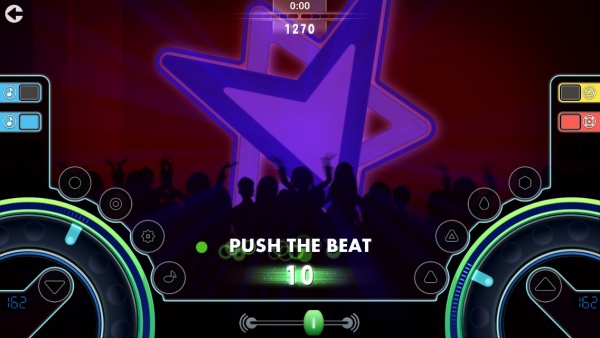
Today at the EA event, we got to see a slick new game that’s part music creation, part social free-to-play game, part music mashup engine. Called Zya, it lets you pick beats, bass lines, and sing melodies, choosing from a wide variety of professional sounds and performances from all different types of music, including a bunch that you’ve heard on the radio recently.
iPhone App - Designed for the iPhone, compatible with the iPad
Posted April 3rd, 2013 by Jennifer Allen Our Rating: :: EFFECTIVE
Offering personalized event recommendations, Eventful is a great tool to figure out what to do and where, even if it is a little forgetful when it comes to one's location.
Halfbrick (Jetpack Joyride) gave us an early look at its new Game Dev Story meets Rockband game, Band Stars. Choose a genre, band members, and lyrical topics to create hit songs and build your following. Train musicians, keep them well supplied with energy drinks, and you’ll have a dream team rockin’ in no time.
Sonos today released an update to their apps that allows you to save global favorites, called Sonos Favorites from all of their music services in one convenient list. For instance you can save a playlist from Spotify, a favorite radio station from the streaming radio, a favorite station from Sirius XM. And each of them will appear in your Sonos Favorites where you have two touch access to them. Much better than diving three to four levels deep looking for your favorite sources.
Sonos also announced a new awesome speaker. The Sonos Playbar. Meant to be a speaker bar that sits under your large screen TV, the Playbar has all of the usual features of a Sonos speaker meaning that you can play “all the music in the world” on it. It also has optical connection to hook directly to your TV. The Playbar will be $699 and available in just a couple weeks. You can preorder it at the Sonos site. Here are the key features, direct from Sonos:
• HiFi Sound for your TV: PLAYBAR’s powerful nine-driver array and unique acoustic software deliver immersive audio for movies and games, huge waves of live concert sound and wirelessly streams all the music on earth. PLAYBAR includes six mid-woofers for deep, rich low frequency sounds and three tweeters for crystal clear high-frequency sounds.
• Play all the music on earth with this complete wireless HiFi system: Whether you’re watching your favorite movie, catching up the latest TV series, gaming with your friends or having a full-on house party, PLAYBAR provides the perfect HiFi accompaniment. Easily access popular music streaming services such as Spotify, Pandora and Rhapsody, your favorite Internet radio stations and your personal music library through the free Sonos controller apps. And, PLAYBAR can be used as a standalone all-in-one player or added to your Sonos system, expanding your listening experience throughout the home.
• Home Theater made simple: To set up PLAYBAR, all you have to do is connect an optical audio cable to your TV and apply power. You can place it in front of your TV or mount on the wall and PLAYBAR’s built-in sensors will automatically orient the audio channels and adjust the EQs for the perfect sound. When you add a SUB or two PLAY:3s, you can get a full 5.1 experience without the need for messy wiring or complex audio set-up. Control the volume with your existing TV remote or via one of the free Sonos Controllers for Android, iOS, PC or Mac.
In each case, the new iKlip models provide ways in which to mount and position the iPad or iPad mini, thereby enabling users to operate devices hands-free as well as set up the perfect viewing angle towards a microphone stand, tabletop or anything else of use in the studio. It’s the kind of solution that’s ideal for presentations as well as music studio work, or just around the home.
The iKlip 2 offers such a solution for iPad users, enabling them to attach any type of iPad (from the 2nd generation and later) to a microphone stand securely, as well as be able to adjust the device to just the right viewing angle. For iPad mini users, there’s the iKlip 2 for iPad mini, offering the same potential.
Tabletop stands are also available in separate iPad and iPad Mini versions, with the iKlip Stand making things much simpler. It’s the ideal stand for connecting the iPad above the desktop so that it’s easy to position equipment, such as a musical keyboard or mixer underneath, but it can also be used in the home. Too small an office desk to fit all the devices easily? Use the iKlip Stand to solve such a problem and revel in the extra space!
The iKlip Studio offers a similar solution but is specifically designed for use on flat surfaces, and aimed at those apps that require “energetic tapping and beat making”, tying in nicely with the many DJ based apps already out there. Non-slip rubber grip feet, as well as adjustable viewing angles keep the iPad safe and secure, plus it folds flat, lending itself perfectly to easy storage.
The iKlip 2 for iPad and iKlip 2 for iPad mini will be priced at $39.99 or €29.99 excluding tax, while the iKlip Stand for iPad and iKlip Stand for iPad mini will be $59.99/€49.99. The iKlip Studio for iPad mini is priced at $29.99/€24.99.
We’re big fans of IK Multimedia’s accessories and I suspect these new iKlips will be quite the hit when they ship during the first quarter of 2013.
iPhone App - Designed for the iPhone, compatible with the iPad
Posted December 4th, 2012 by Denis Farr Our Rating: :: CREATOR & DESTROYER
A soothing journey through space, creating and destroying the stars in a solar system. Music responds to the press of a fingertip, colors explode everywhere.
Posted November 20th, 2012 by Jennifer Allen Our Rating: :: VARIED DISCOVERIES
Each day of the year, Band of the Day highlights a particular new band worthy of checking out, and offers up a selection of tracks and information to absorb.